
Product and campaign visuals
Place an item in a studio or lifestyle setting. Describe the surface, viewing angle, and space for your layout; use a supported reference input when you need to guide the product's appearance.
Make the images your next project needs with the AI image generator on Veo 4. Describe a product scene, develop a visual concept, or prepare a reference for a video. Start with text or an image in a supported mode, then compare the result with your brief.
Images with a job to do
A product page, a campaign, and a video each need different images. Define the deliverable first so the composition serves its purpose.
Place an item in a studio or lifestyle setting. Describe the surface, viewing angle, and space for your layout; use a supported reference input when you need to guide the product's appearance.
Explore a location, palette, or character look before committing to a shoot or design. Compare a few deliberate directions instead of changing every detail at once.
Use an image input where supported to request a different setting, color treatment, or detail. Name the features you want to keep and inspect them in each result.
Develop a scene image that communicates framing, light, and atmosphere. You can use a suitable saved image as an input when your chosen video mode accepts it.
From a brief to a useful visual
Use the AI image generator to develop product visuals, storyboard frames, and scene studies. Start with the subject, then choose the framing and light for each image.
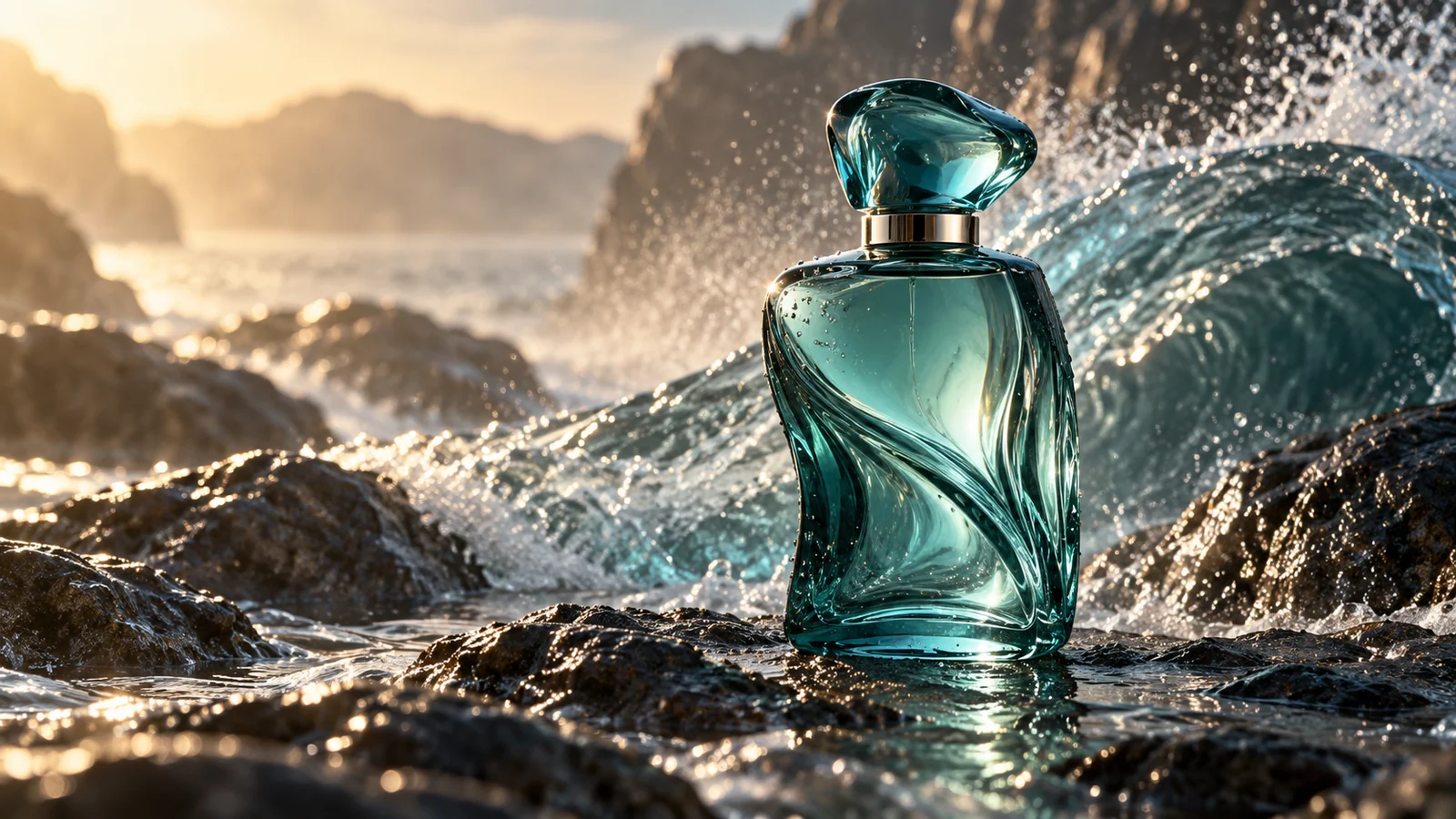
Plan a perfume image around translucent glass, wet rock, and a wave in the background. Describe the viewing angle and reflections, then inspect the bottle shape and surface detail.
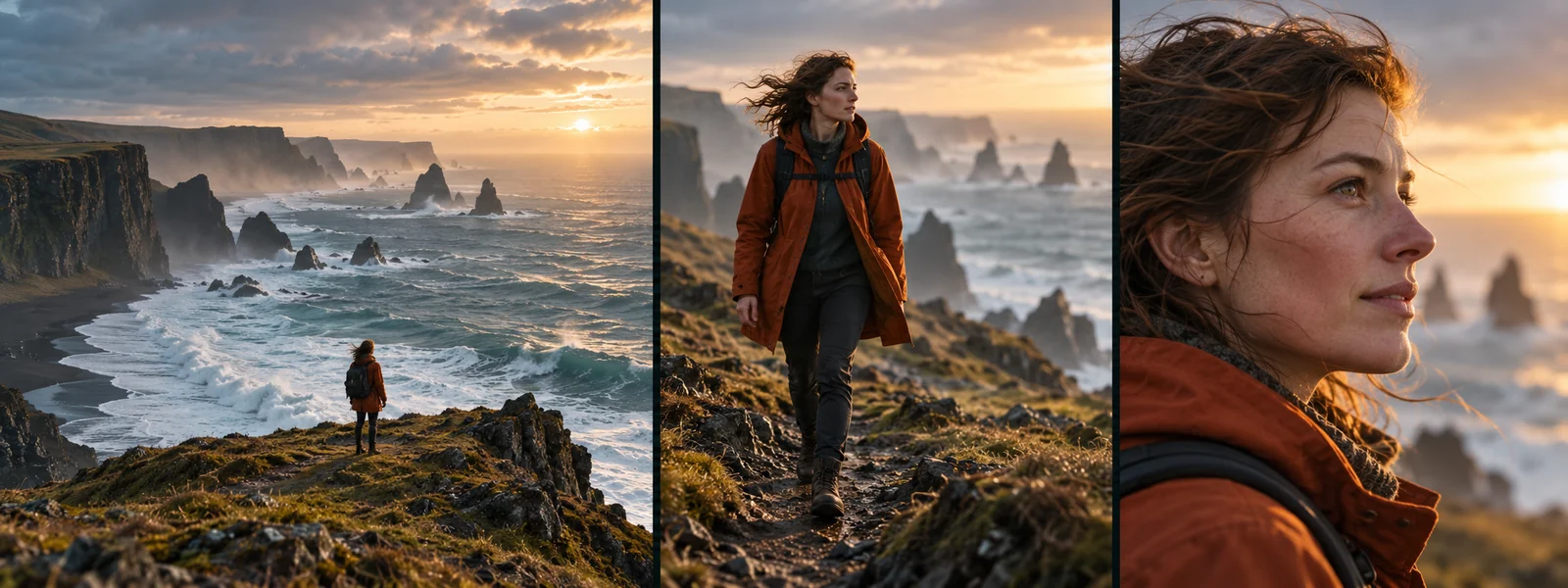
Prepare a wide coastal view, a medium view of the traveler, and a portrait detail. Describe the orange jacket, setting, and light in each request, then compare the images when planning a sequence.
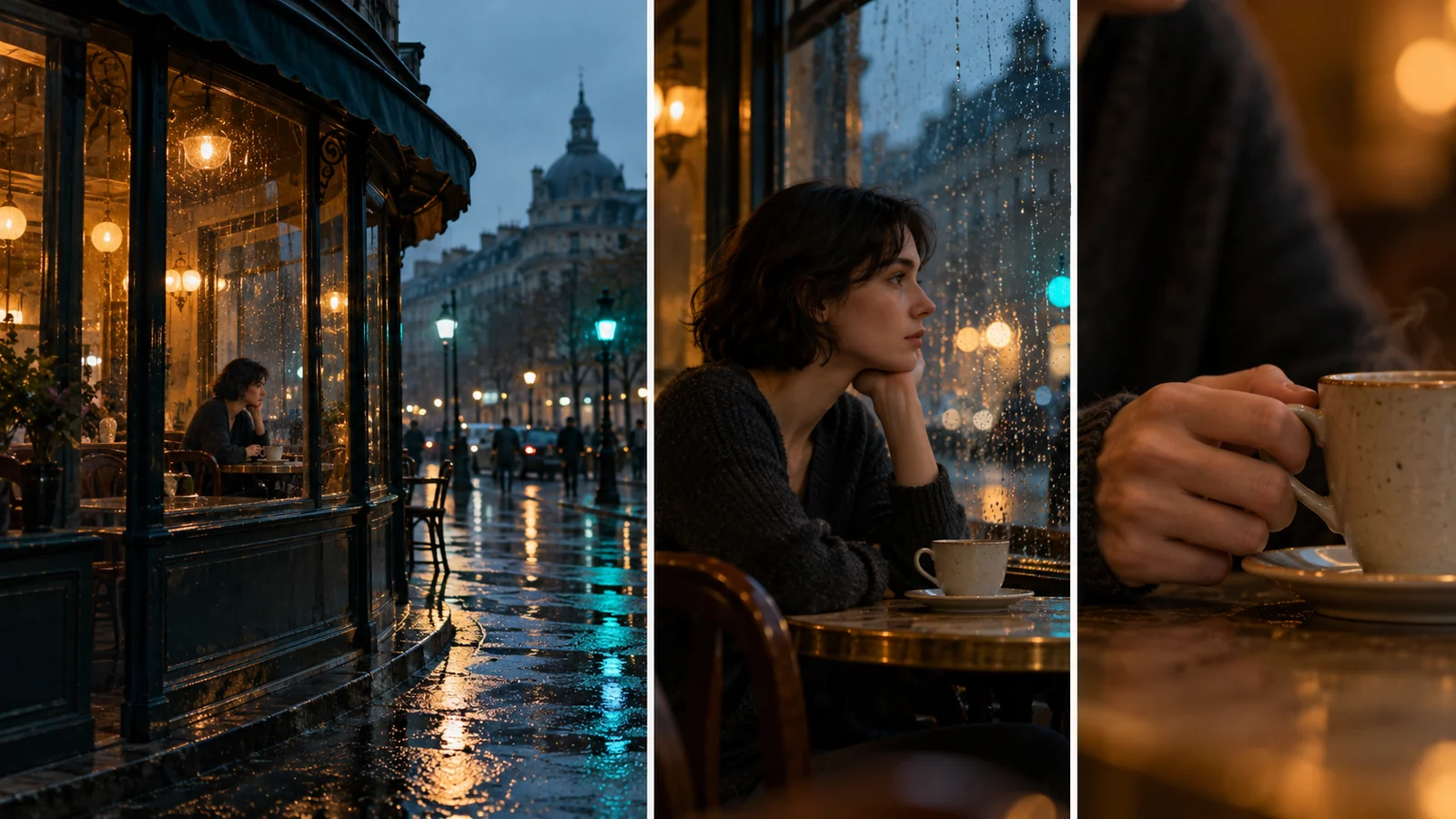
Explore the rainy street, the woman beside the window, and a close view of her coffee cup. Use framing, warm interior light, and cool reflections to develop a coherent visual direction.
Create, inspect, refine
Use the AI image generator on Veo 4 to turn a short brief into a task, then review the output before choosing what to keep.
01
Name the subject and intended use, then add framing, lighting, and style. For an image-guided task, explain the role of each supported reference.
02
Select an image model and input mode. Review its available aspect ratios and other settings, check the credit cost, and sign in to generate.
03
Open the result and inspect the subject, edges, background, and any lettering. Compare it with your source material and the space available in your layout.
04
Reuse a saved task's inputs and check the restored references. Change the instruction that matters for the next version, then submit when ready.
Practical questions
Choose inputs and review methods that fit the image you intend to use.
Yes. Select a text-to-image mode and describe the scene. A reference image is useful when you want to guide a particular subject or composition, but it is not required for text-to-image generation.
Choose a model and input mode that accept images, upload your reference, and describe the requested change. Specify which details should remain, then compare the output with the original.
If the video mode accepts image input, you can supply a suitable saved image and describe the motion you want. Check that mode's file requirements and frame options before submitting.
Include the exact wording and placement in the prompt, then proofread the result. For tightly controlled typography, reserve space in the image and add the final text in a design tool.
Generation spends credits based on the selected model and settings. Image downloads require a valid paid entitlement. Review the displayed task cost and your account's download access before starting.
Create with Veo 4
Open the AI image generator with a product, a scene, or a design idea in mind. Write your brief and choose the inputs for your first version.