
Text to video
Describe the subject and setting, then add the action you want to see. This is a useful starting point when you want to develop the scene and its movement together.
Create a product reveal, a moving portrait, or a story moment with the AI video generator on Veo 4. Begin with a written scene or an image in a supported mode. Describe the action and camera movement, choose the available settings, and follow your task in the workspace.
Choose how your scene begins
The opening frame gives the viewer a place to look. Motion, camera direction, and timing determine what happens next.
Describe the subject and setting, then add the action you want to see. This is a useful starting point when you want to develop the scene and its movement together.
Choose a mode that accepts an image when you have an opening composition in mind. Explain what moves, what stays still, and how the camera observes the scene.
Separate a character's action from the camera move. A slow push toward a stationary product and a tracking shot beside a walking person call for different instructions.
Plan each shot around one event. Use a supported shot-planning mode or generate separate clips, review them, and assemble your selection in an editing tool.
Scenes to develop
Use the AI video generator to plan a coastal journey, a cafe moment, or a product reveal. Shape each shot around a clear action and camera move.
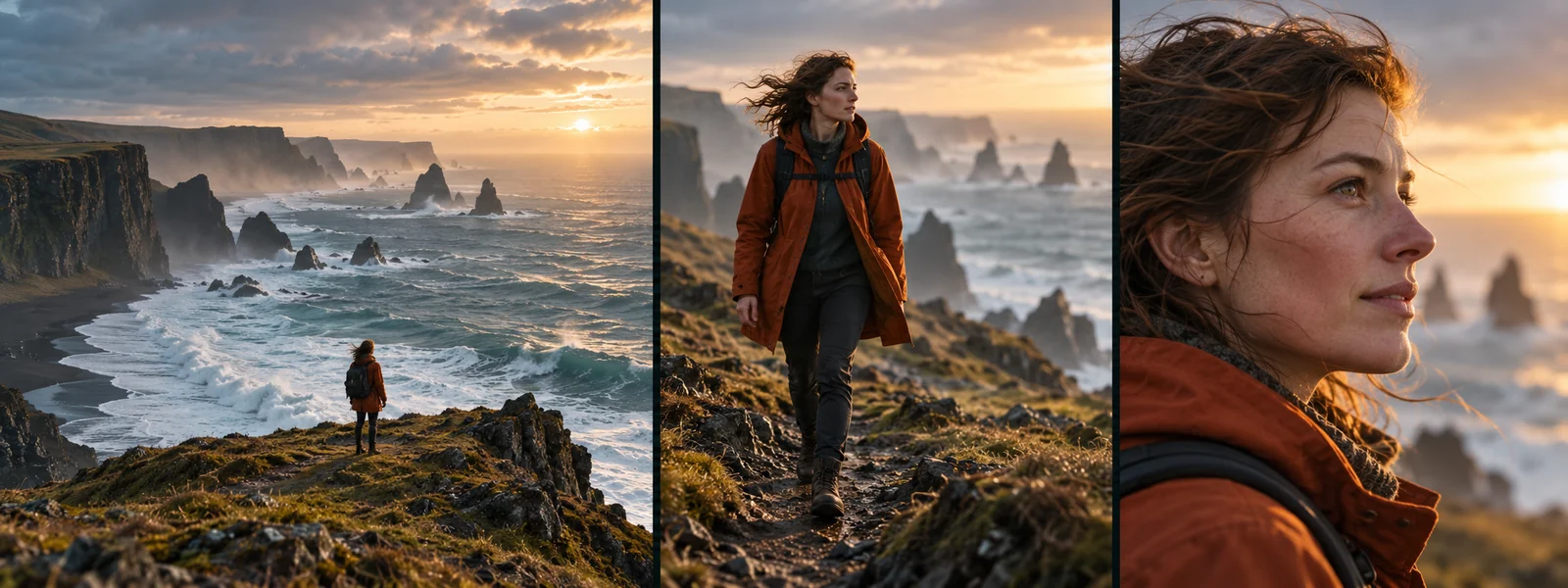
Begin with the coast, move to the traveler in an orange jacket, and end on her expression. Describe each shot separately and decide how wind, walking, and camera movement connect the sequence.
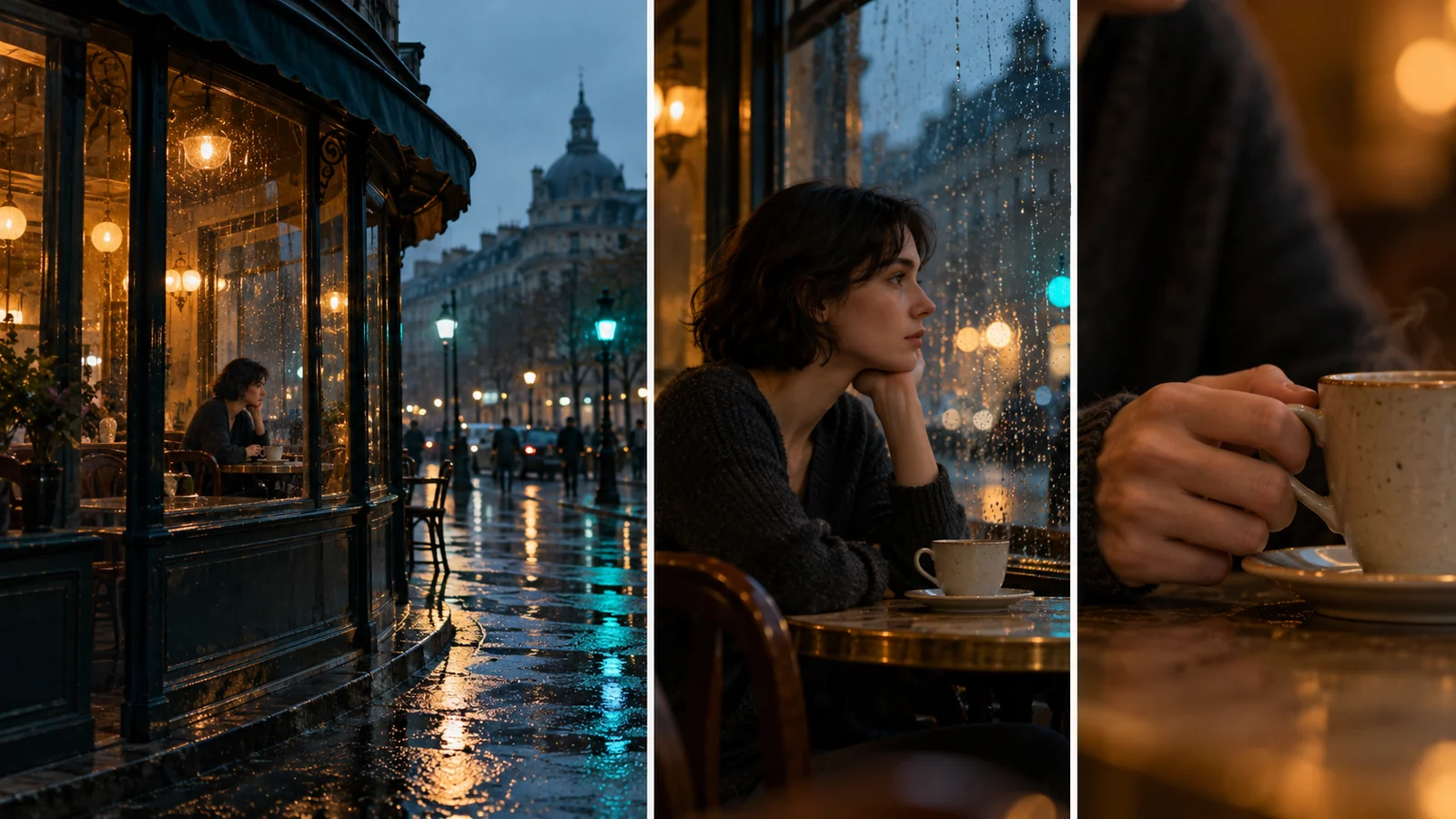
Plan an exterior view of the rainy cafe, a woman looking through the window, and a hand lifting a cup. Give each shot one clear action and a considered camera position.
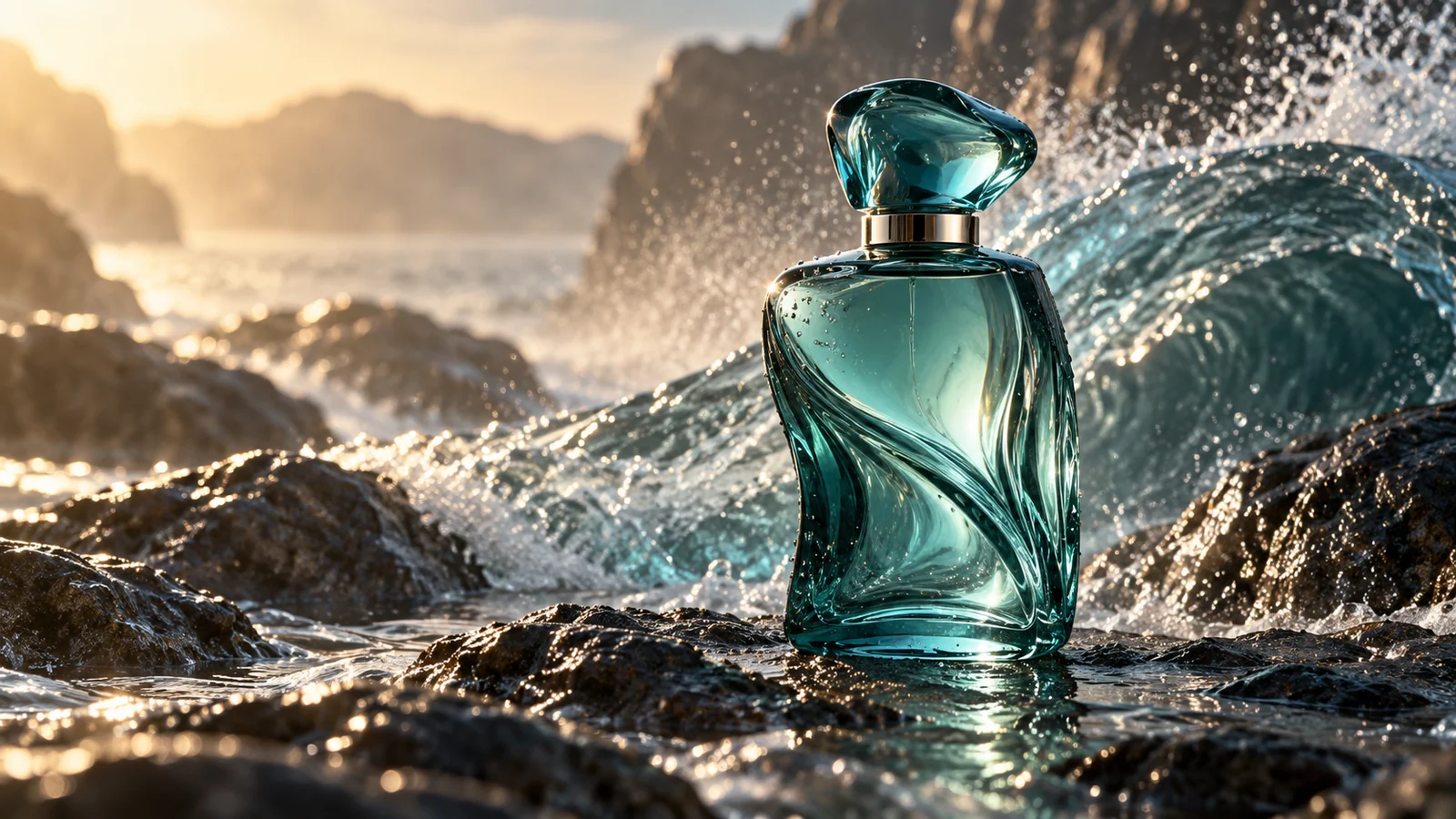
Keep the bottle on wet rock while a wave rises behind it and the camera moves closer. Describe the light through the glass, then review the product shape and water motion across the clip.
From scene idea to reviewed clip
Keep each AI video generator task focused enough to evaluate. Use your saved inputs to carry a clear direction into the next take.
01
Describe the subject, location, initial framing, and one main event. If using an image, explain the movement you want to develop from it.
02
Select a video model and a supported input mode. Choose from its available duration, aspect ratio, and other options, then check the credit cost.
03
Sign in to submit your request. View progress in the workspace and open the video when a result is available.
04
Watch the opening, movement, and ending. Reuse the task's inputs, check the restored references, and revise the part of the brief you want to change.
Inputs, settings, and results
Match the task to your intended shot and review the complete clip before using it.
Start with text when you want to explore the setting as well as the action. Use an image-supported mode when you already have a composition to work from, then describe how it should move.
Choose from the settings shown for the selected model. Available durations, aspect ratios, and other options vary by model and input mode; writing a value in the prompt does not change the tool's limits.
Use a first-and-last-frame mode when the selected model offers it. Supply images that meet the input requirements and describe the movement between them. Review the transition in the generated result.
Audio generation depends on the selected model and settings. Review any generated sound with the clip. Use your editing tool for captions that need exact wording and timing.
Generation uses credits according to the model and settings shown for the task. Video downloads require a valid paid entitlement. Check the task cost and your account access before generating.
Video creation with Veo 4
Give the AI video generator an opening view and a clear movement. Prepare your prompt or supported image input, then create your next take.